After creating your school account, you’ll be taken to the School Dashboard, where the head office can easily manage campuses, books, students, and plans.
1. What your dashboard shows you
This is the first screen you see, providing an overview of how your campuses are performing.
Top bar and summary cards
- Date range — pick any period. All numbers below change to match.
- Campuses, Teachers, Students, Engagement, Books and Pages read.
- Green or red badge — shows if the number went up or down.
- Customize widgets — choose which boxes appear on your screen.
- Export — save this page as a report.
Note: Engagement is the time your student spend on Aliflaila.

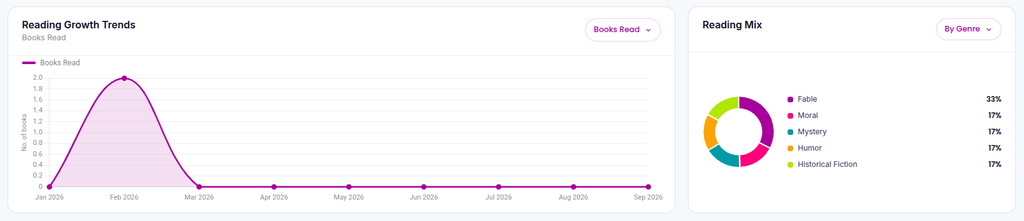
Reading charts
- Reading growth trends — show campuses reading activity in a graph.
- Reading mix — shows what type of reading your students do.
Note: Both charts have a dropdown at the top right. Tap it to change what the chart shows.
Campuses and adoption
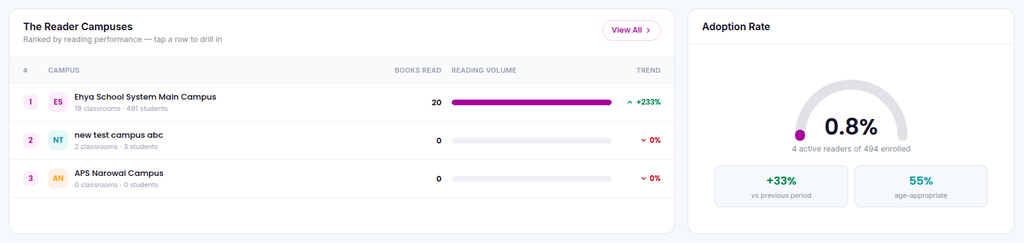
- Reader campuses — all campuses ranked. Tap a row to open more detail about it.
- Adoption rate — how many students are reading, and if the books suit their age.
Top Performers
- Top teachers — shows your most active teachers and how their students are performing.
- Top students — your best readers, with the number of books they finished.
Note: Select View All to see the complete list. Click any row to open its details panel, where you can generate certificates for students.

Work and campuses
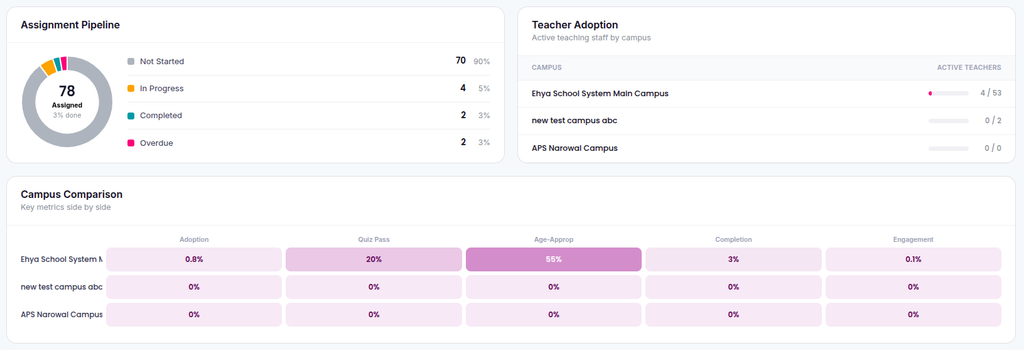
- Assignment pipeline — how many books teachers assigned, and how far students got.
- Teacher adoption — active teachers at each campus out of the total assigned.
- Campus comparison — all your campuses side by side, so you can see who leads and who needs help.
2. View All Campuses & Add New Campuses
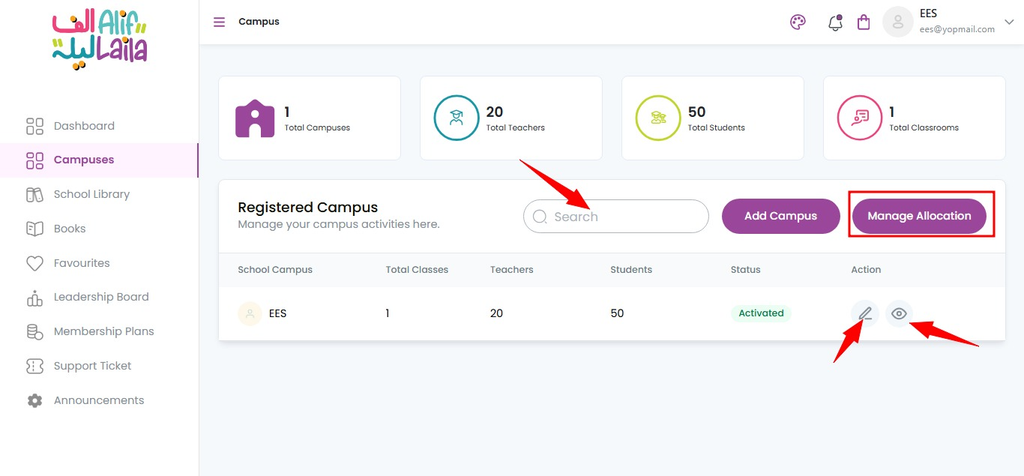
- See the list of all campuses under your school.
- Add new campuses if your school has more branches
Note: When you add a new campus, your plan is updated (if required) and the campus is added to your list. Use Manage Allocation to increase or decrease campus seats. Inside the campus details, you can find the username, password and statistic for that campus. These credentials can be shared offline with the Campus Admin or campus management, who will use them to log in to the Campus Dashboard.
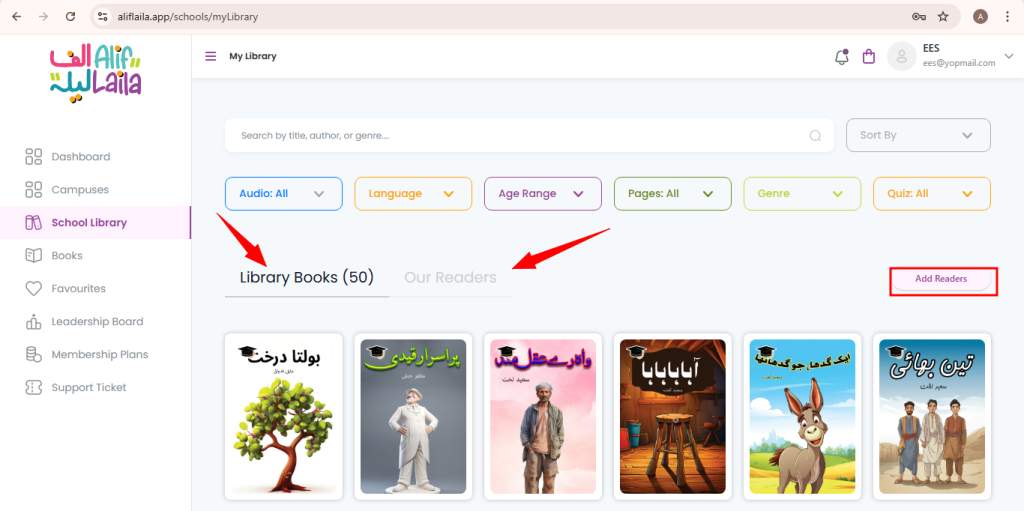
3. Check School Library & Add Readers
- View the books selected during plan creation
- Add more Readers (story books) to your school library
- Manage which books are available in your library
Note: In AlifLaila, “Readers” means story books, not students.
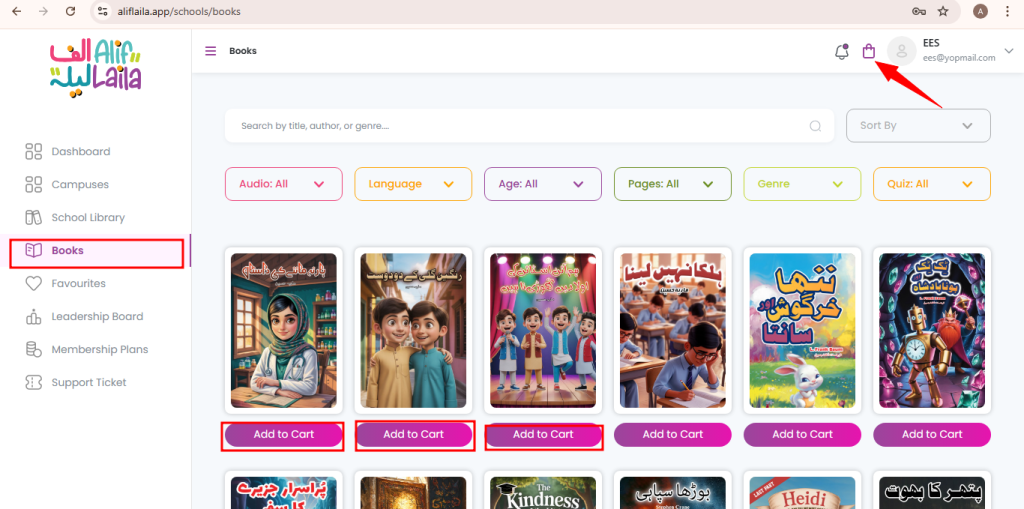
4. Check Books Page & Add Books to Cart
- Visit the Books page to see all available books.
- You can add books to the cart.
- These books will appear when you upgrade your plan.
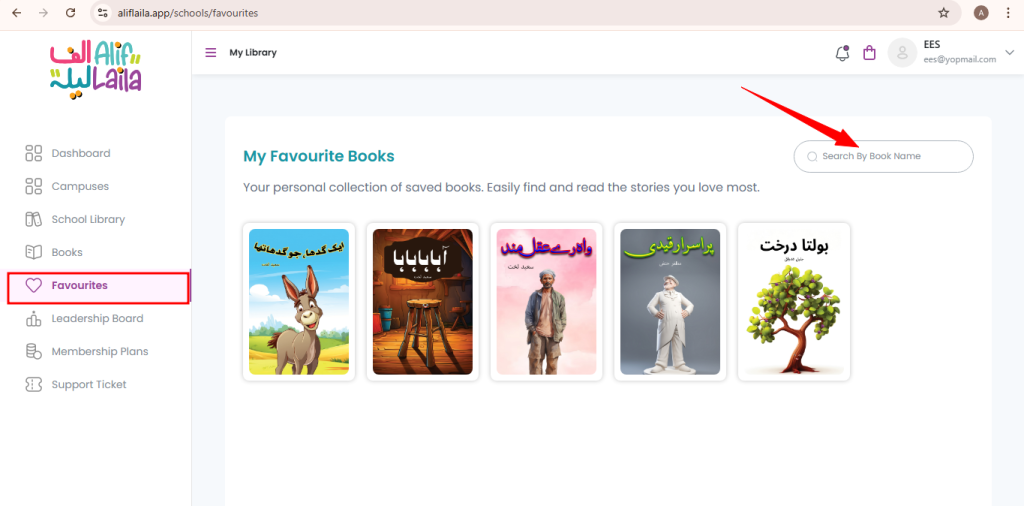
5. Check Favorites Page
- View all the books you marked as favorite.
- Easily access your most liked books here.
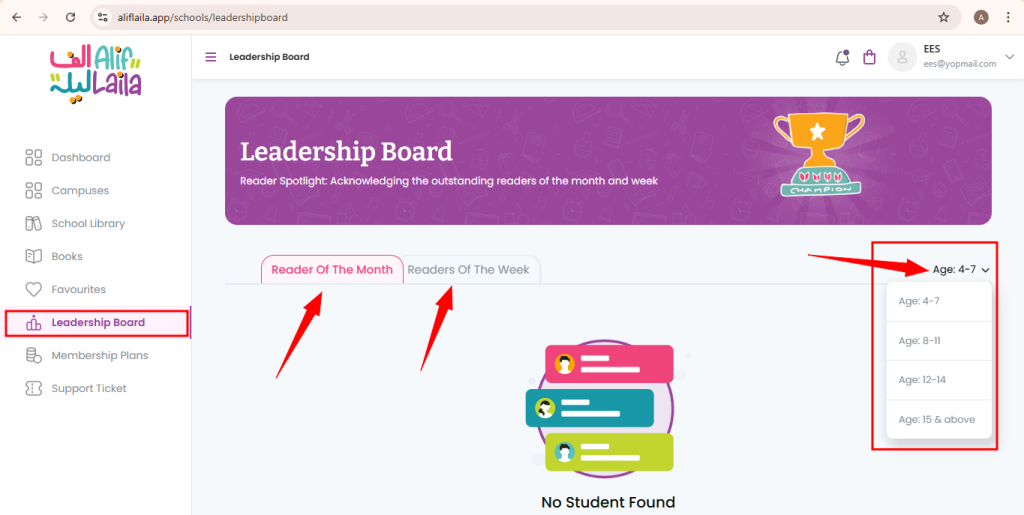
6. Check Leaderboard Page (Reader Spotlight)
- View the Reader Spotlight section.
- See top readers of the week and month.
- This helps motivate students to read more.
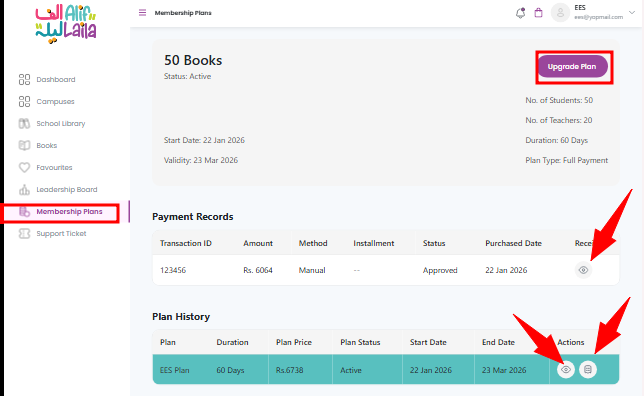
7. Check Membership Plans & Transactions
- View all your payment transactions.
- Check your current membership plan.
- Upgrade your plan anytime from this page.
8. Visit Support Page for Help
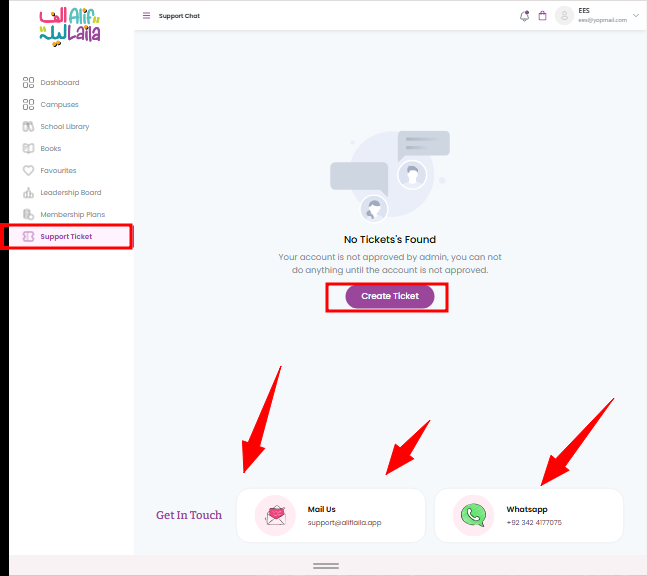
- Go to the Support page for any issues.
- Contact the AlifLaila official support team.
- Get help with payments, access, or technical problems.
9. Announcements
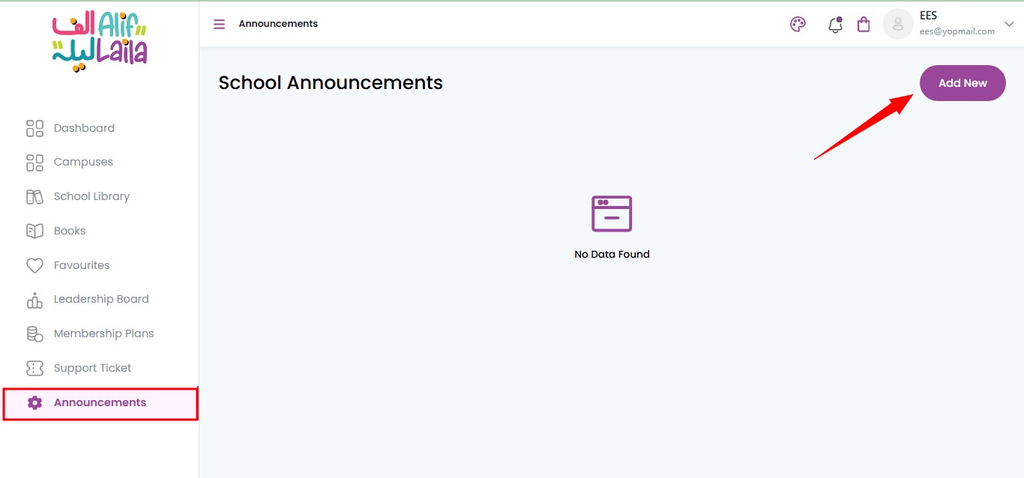
- Go to the Announcements page to add and share important school updates with students across your campuses.
What’s Next?
From the School Dashboard (Head Office), you will usually move to managing your campuses.
Next, read:
Welcome to the Campus Dashboard
This will guide you on how to manage each campus in detail.