This guide explains how students can log in and use AlifLaila to read books, track progress, and enjoy learning.
1. How to Log In as a Student
- Open your internet browser.
- Go to the AlifLaila website or app.
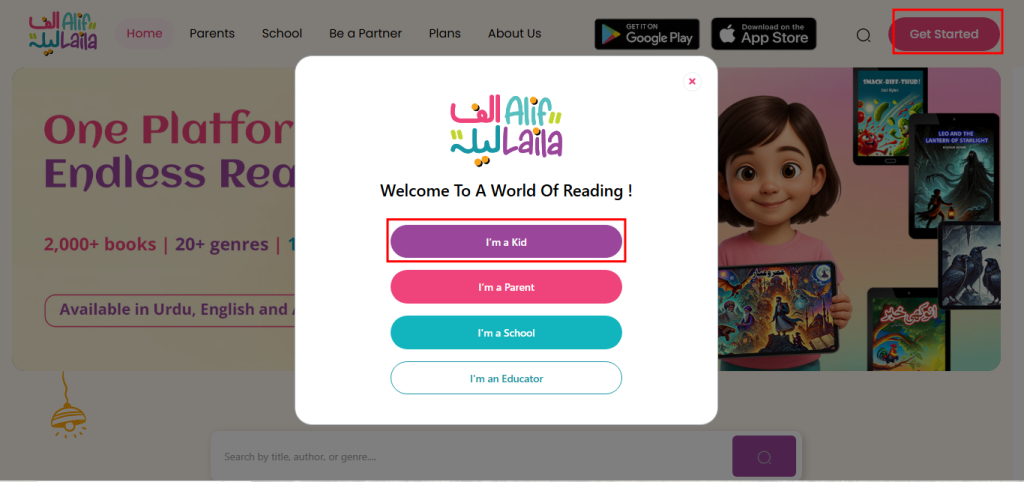
- Click on the Get Started button.
- The login form will open.
- Select “I’m a Kid”.
- Enter your student username and password.
- Click Login.
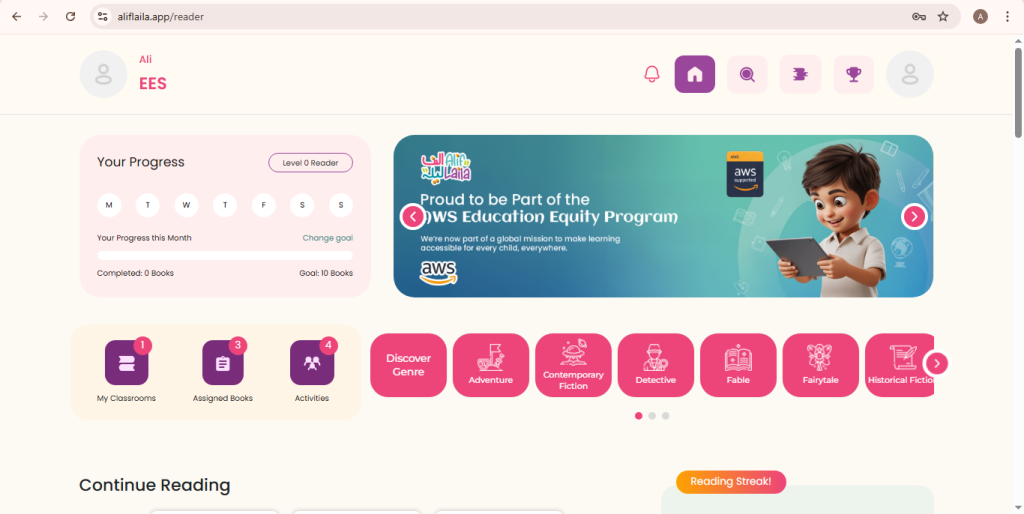
You will be taken to the Student Home Page.
2. Welcome to the Home Page
On the Home Page, students can:
- View available books.
- See assigned books from their classroom.
- Check classroom activity.
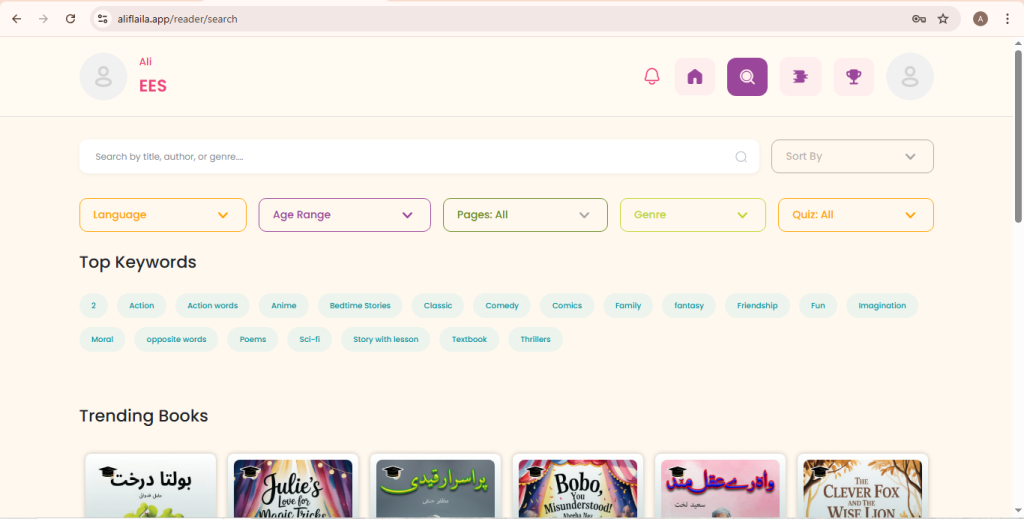
3. Use the Search Tab to Explore Books
- Open the Search tab.
- Search books by title or category.
- Explore new and interesting books.
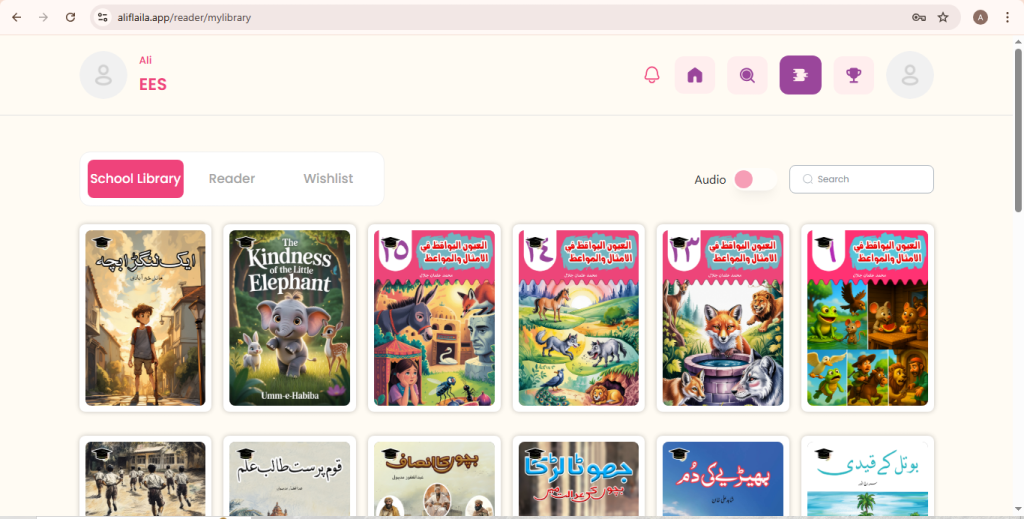
4. View “My Library” Page
On the My Library page, students can see:
- School library books.
- Reader books.
- Favorite books.
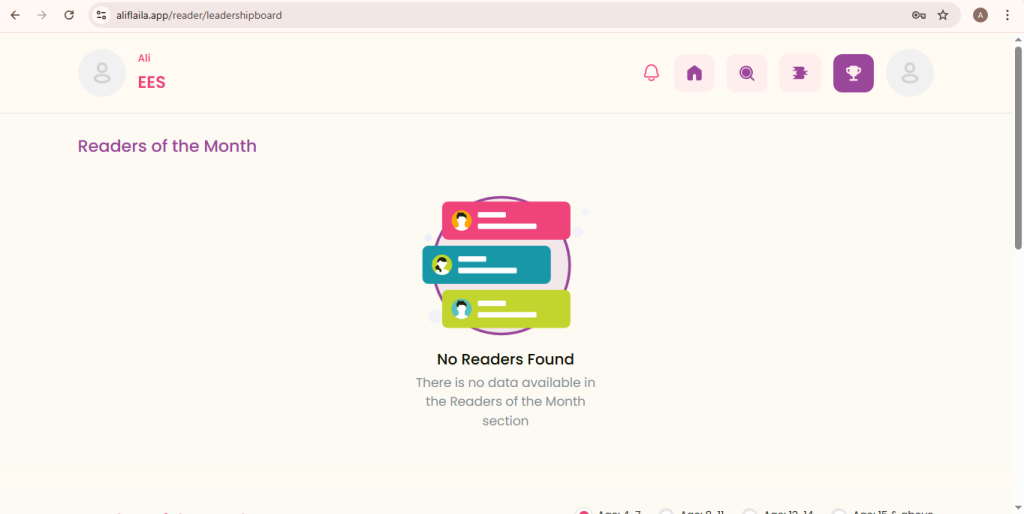
5. View Leaderboard (Reader Spotlight)
- Open the Leaderboard page.
- See top readers of the week and month.
- Get motivated by classmates’ reading achievements.
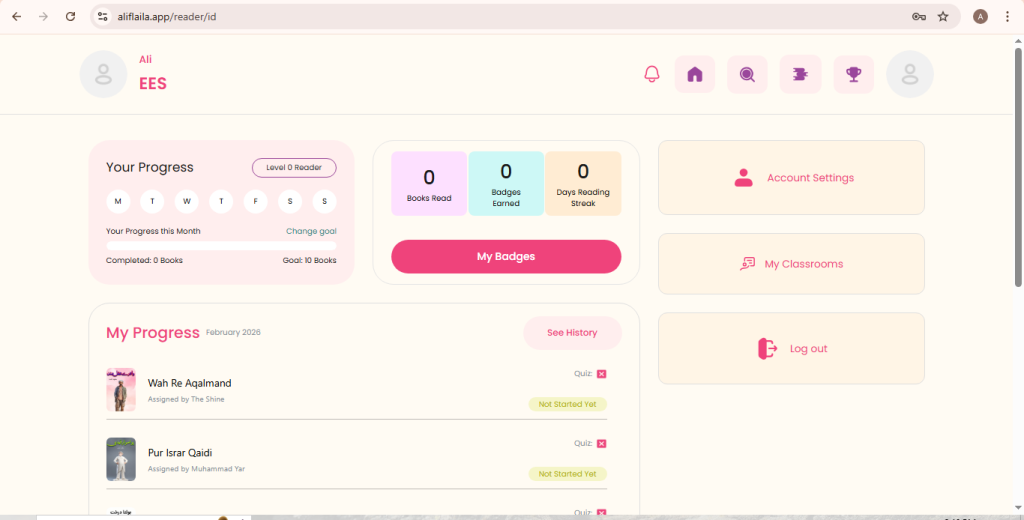
6. View Settings Page
From the Settings page, students can:
- Log out of their account.
- View account session details.
- Check reading progress.
- View earned badges.
- Update reading goals.
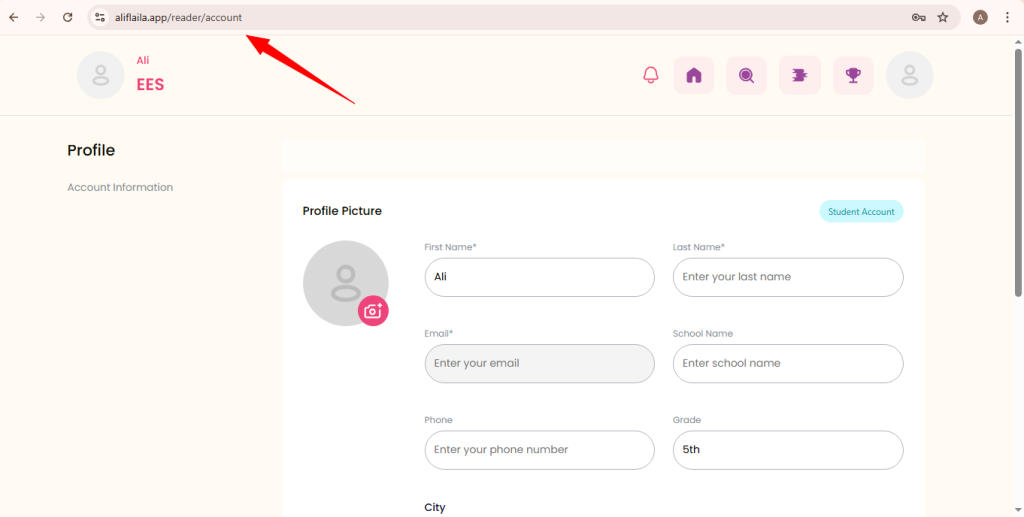
7. Account Page – Update Profile
- Open the Account page.
- Update your profile details if required.
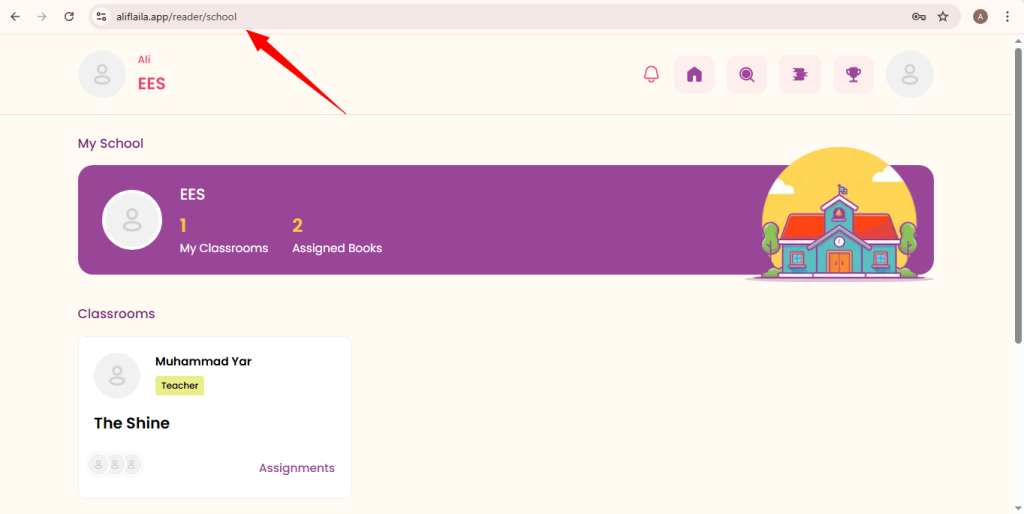
8. School Page – Classroom & Assignments
- View your classroom details.
- Check assigned books and classroom activities.
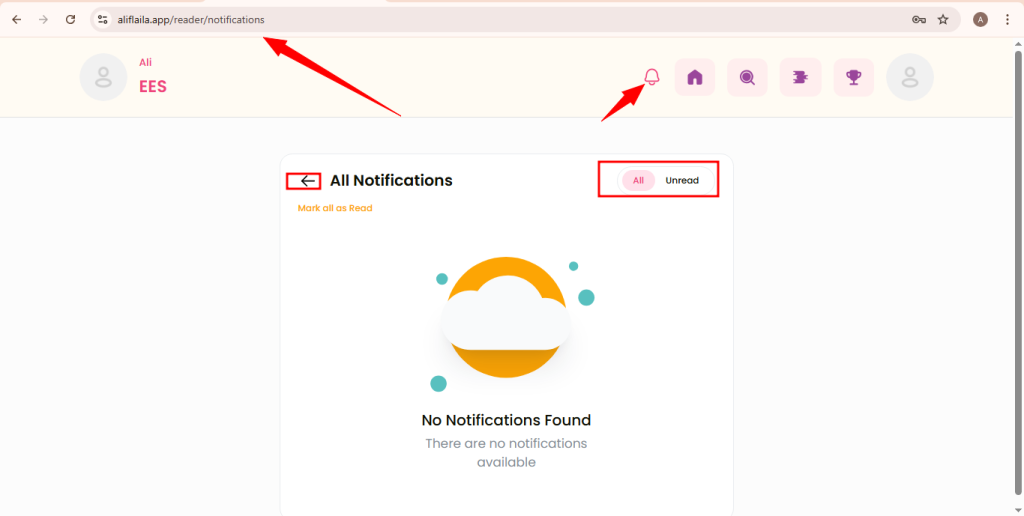
9. Notifications Page
- Open the Notifications page.
- View all important updates, messages, and alerts.