This guide explains how a Head Office user can log in, upgrade the school plan, and add a new campus on AlifLaila.
Step 1: Log In as Head Office
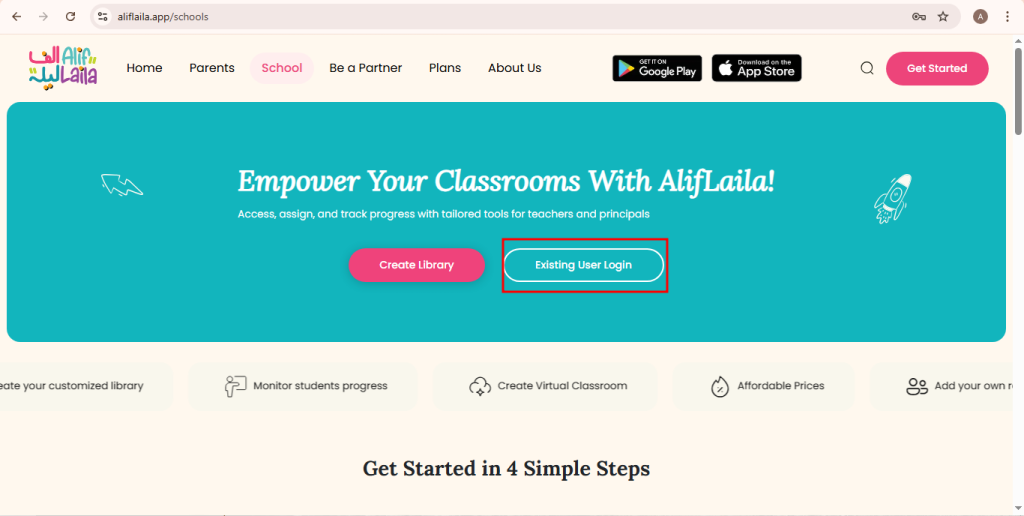
- Open your internet browser.
- Go to:
👉 https://aliflaila.app/schools - Click on Existing User Login.
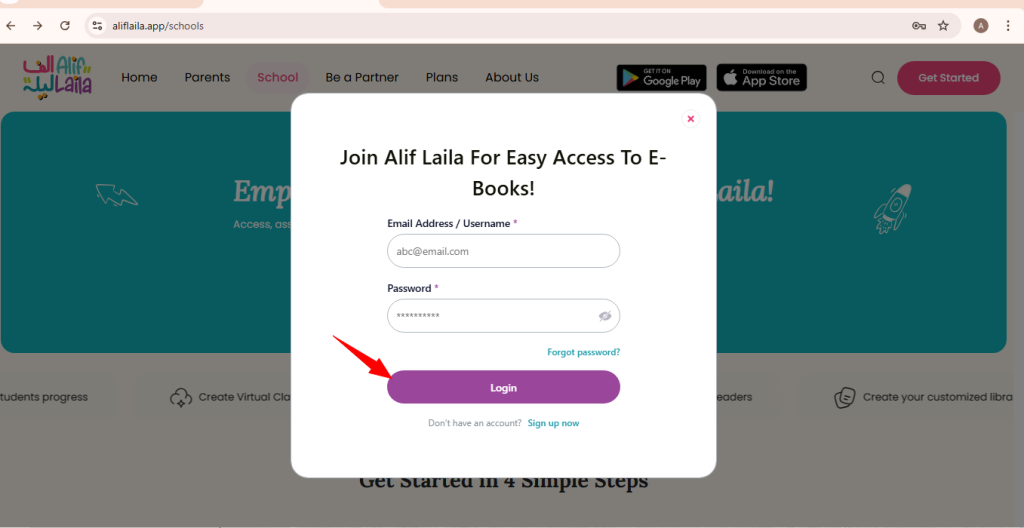
- A login popup (modal) will appear.
- Enter your email / username and password.
- Click the Login button.
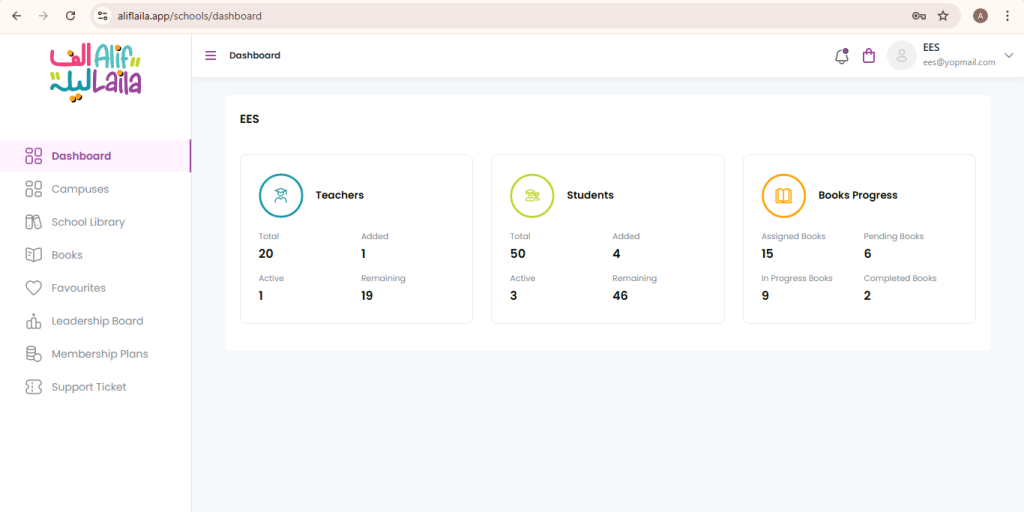
After successful login, you will be redirected to the Head Office Dashboard, where you can see your existing campus details.
Step 2: Open Campuses Page
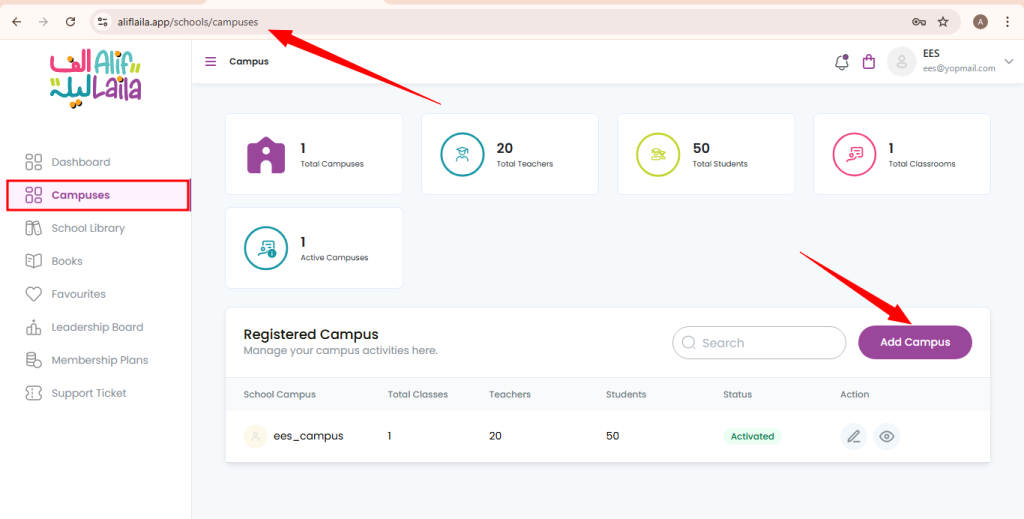
- Go to the campuses page:
👉 https://aliflaila.app/schools/campuses - You will see a list of all existing campuses.
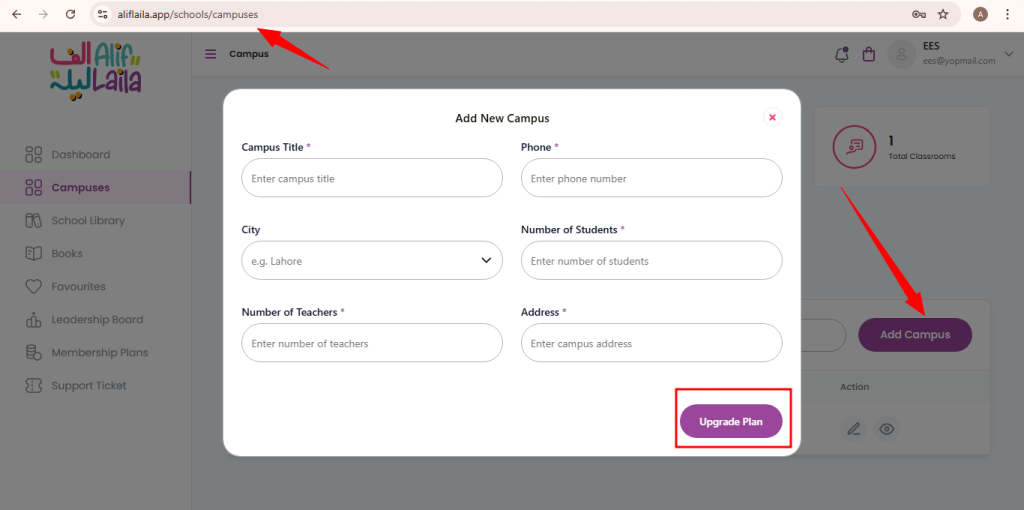
- Click on the Add Campus button.
Step 3: Add New Campus Details
- After clicking Add Campus, a popup (modal) will open.
- Fill in all the required campus details.
- Click on the Upgrade Plan button.
You will now be redirected to the Upgrade Plan page.
Step 4: Upgrade Plan (Books & Duration)
You will be redirected to:
👉 https://aliflaila.app/schools/upgradePlan
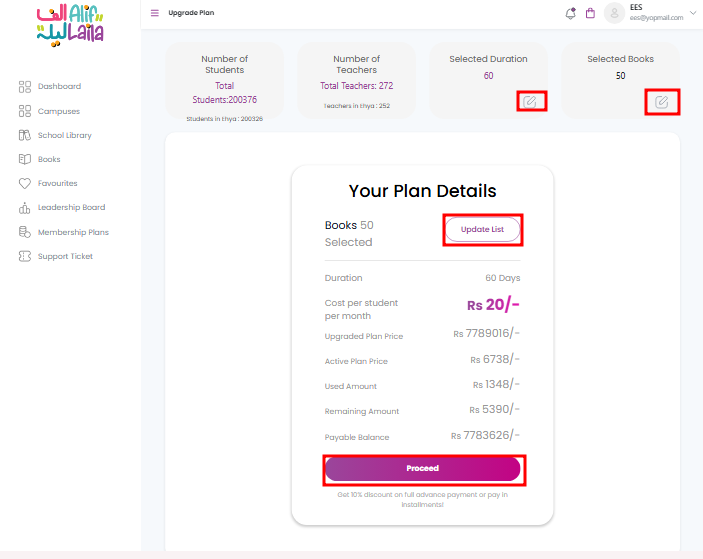
On this screen, you can:
- View your current plan information
- Upgrade or add more books
- Update the plan duration
After making changes:
- Click the Purchase button.
Step 5: Choose Payment Option
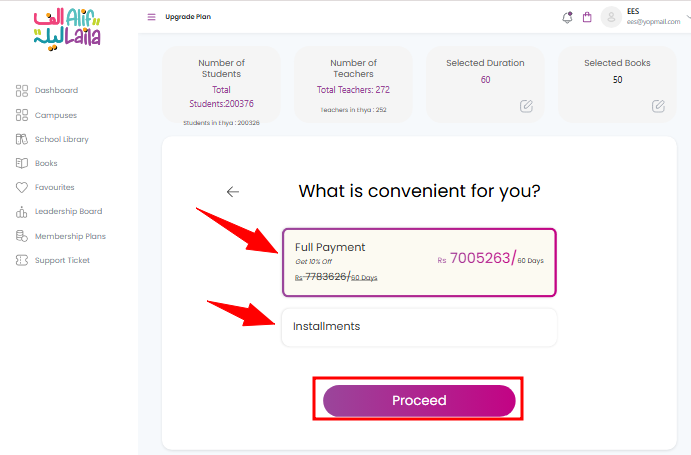
After clicking Purchase, you will see a screen asking:
“What is convenient for you?”
Choose one option:
- Pay Full Amount
- Pay in Installments
Click the Proceed button.
Step 6: Choose Payment Method
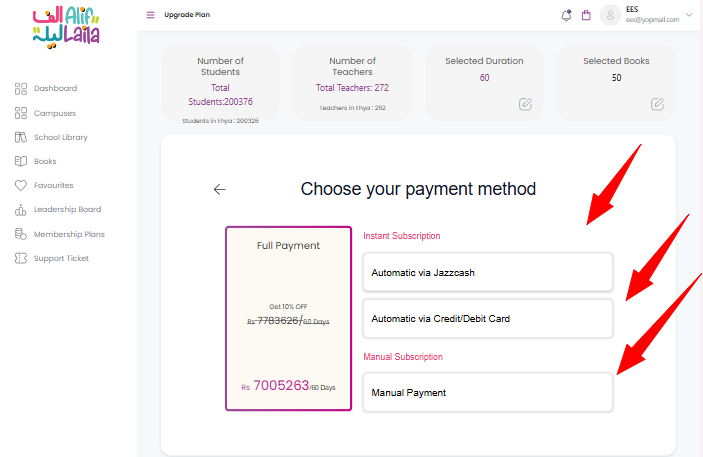
Next, you will see the Choose Your Payment Method screen.
Available payment methods:
- Instant Subscription
- Automatic via JazzCash
- Automatic via Credit / Debit Card
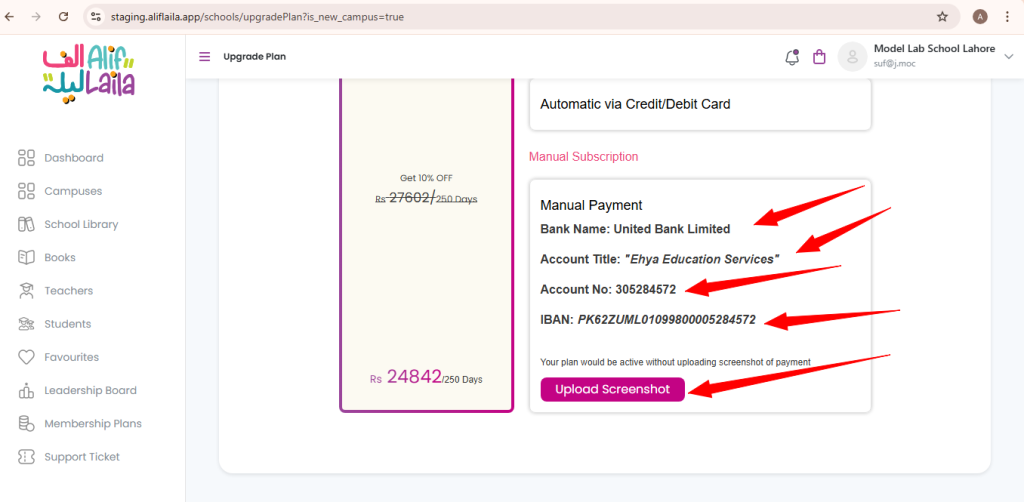
- Manual Subscription
- Manual Payment
Select your preferred payment method.
Step 7: Manual Payment (Admin Approval Required)
If you select Manual Payment:
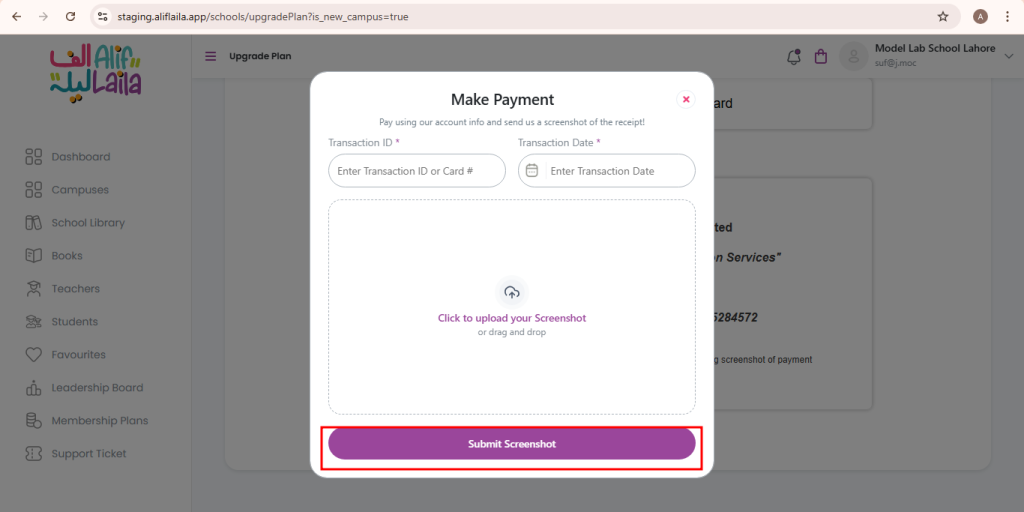
- Upload the payment screenshot.
- Enter the transaction ID.
- Click the Submit button.
Your request will be sent to the AlifLaila admin team.
⏳ Important Note:
Manual payments require admin approval.
Once the admin verifies and approves your payment, the new campus will be activated and visible in your campuses list.
Final Result
After successful payment and approval:
- Your plan is upgraded
- Your new campus is added
- You can manage the campus from the Head Office Dashboard